Relocating
and cloning fixtures
Move or copy multiple fixtures at once
from one hang structure to any other hang structure in Wireframe. You
can move or copy fixtures on the same truss chord to another truss chord
of the same or a different truss.
move fixtures and copy
fixtures. The steps to use and
are the same.
You can use to move imported fixtures from the individual pipes
they get to a single hang structure if the pipes are collinear.
To relocate or clone fixtures
- Select two or more fixtures on a hang structure.
- From the menu,
choose or .
Tip: You can
right-click, then choose or
from the menu that appears;
or use the corresponding keyboard shortcuts CTRL+X or
CTRL+C.
Note: For
these functions to work, only select fixtures on a single hang structure
or the same chord of a truss.
- Hover over the target hang structure to where
you want to relocate or place the copied fixtures.
Result:
Line markers
appear on the target hang structure to indicate where the fixtures
will be placed after the move or copy is completed.

OR
Red X markers will appear if:
- The target hang structure does not have enough
space for the selected fixtures.
- The Enforce Minimum Spacing value
set in Document Options > Hang Structure Settings is considered
when placement is validated.

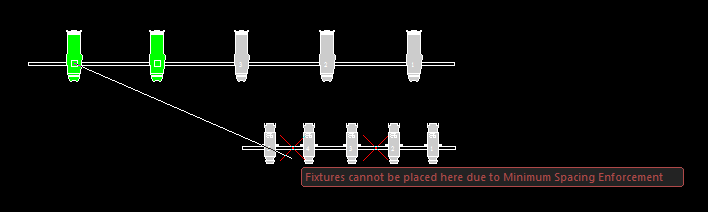
Tip: Whenever
you relocate or clone fixtures from one truss to another truss, it is
always best to work in Isometric View and
Zoom In to make precise fixture placement
on truss chords.
- (This step is optional.) With the fixtures on
the cursor, right-click to select and enable any of the functions
from the menu that appears.
- :
Relocated or cloned fixtures are placed in the opposite direction
from their original locations.
- : The Pan
angles of the relocated or cloned fixtures are flipped by 180°.
Example: When
a fixture with Pan angle set to -30° is relocated, its Pan angle will
change to 150°.
- : Relocated or cloned fixtures are placed on the bottom truss
chord of the same truss.
- : Relocated or cloned fixtures are placed on the top truss
chord of the same truss.
Note:
- The functions remain enabled until they are disabled.
- and
can fix the focus and orientation
of fixtures if reversed after relocating and cloning.
- and
can be used at the same time.
- (This step is optional.) With the fixtures on
the cursor, right-click and select from the menu that appears. Selecting
this option will clear the fixture(s) of attributes after clone or
relocation.
If you select , the following attributes that were
previously set in the Properties window
of the cloned or relocated fixtures will be cleared: Unit,
Purpose, Focus
Position, Pan, Tilt,
Spin, Notes,
Control Channel/Dimmer,
Circuit Name/Number, Patch Universe/Address, Colour,
Gobo, Custom Color
Wheels (automated fixtures only), and Custom
Gobo Wheels (automated fixtures only).
Notes:
- The Unit number
will be assigned to the cloned or relocated fixture(s) automatically
if the target hang structure is a Pipe and the AutoUnit checkbox
in the Hang Structure Settings tab
of Document Options is selected.
- If you select menu, Mode,
Lens, and Lamp
attributes will not clear.
- If you selected menu during a previous
Relocate/Clone operation, it is not selected for the next operation.
- Click to drop and place the fixtures on the target
hang structure.
Result: The
selected fixtures are moved or copied to the target hang structure.
Notes:
- Conventional fixtures maintain their original
focus and orientation after you relocate or clone.
- You can relocate or clone to and from different
types of hang structures if they fit the target space. If Pipe
Snap is enabled, this option will be ignored when placing
fixtures.
- You can relocate imported fixtures from collinear
pipes to other hang structures.
- Properties of cloned fixtures are copied to the
resulting fixtures.
 © CAST Group of Companies Inc., 2002-2021
All rights reserved.
© CAST Group of Companies Inc., 2002-2021
All rights reserved.