Position Manager
The Position Manager organizes
all the available position names in your show document. It also sets the
sort order of your positions. You can use the Position
Manager to change the sort order of the position names, which is
important for printed paperwork like instrument schedules and other reports
that use the Position field. The order of position names is also used
for general sorting in the Data view and the order in which positions
appear in the Flight Case.
The Position Manager is
accessible from the Properties window
of a hang structure and from the command
in the menu.
To view and edit entries in the position manager
- From the menu,
choose .
Note: The
ellipsis button [...] on the Hang Structure page of a pipe’s or truss’
properties will also open the Position Manager.
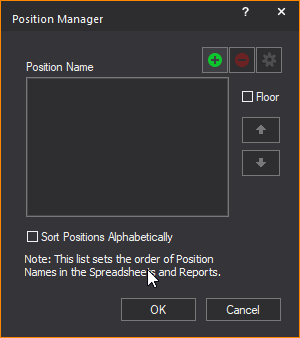
- Click New.
- Type the name of the new position, and then click
OK.
- To modify the name of a position, select the position,
and then click Rename.
- Type the new name, and then click OK.
- To remove a position name, select the name, and
then click Remove. Removing the position
name does not delete the hang structure. Rather the hang structure
removes its association with the position name.
- Floor positions with unique names can be created
in the Position Manager. To assign
a position name as a floor position available for fixtures that are
inserted on the floor, select the position(s) and click the Floor checkbox.
- To reorder the position names in the list, select
the name of the position you want to move. Click Up or
Down to move the name in the list.
- Select the Sort Positions
Alphabetically checkbox to sort the position names in
alphabetical order.
- If you are in a plot view and want to determine
what a particular position references, click Select.
If the plot view is open (and the correct layers are marked editable),
the hang structures that use that position name are selected. To select
more than one position, press CTRL,
and then click the position.
Note: The
list will set the order of the Position Names listed in the Spreadsheets
and Reports.
- Click OK to
close the Position Manager.
 © CAST Group of Companies Inc., 2002-2021
All rights reserved.
© CAST Group of Companies Inc., 2002-2021
All rights reserved.